
Comparing Projects
The program allows you to compare the contents of two projects to identify differences between them. This feature is useful in several scenarios. For example, you may monitor full installations of two versions of the same program and want to see what has changed. Another common case is capturing installations with different post-install customizations and analyzing how those customizations affect low-level file system and registry changes by comparing the resulting projects.
To compare projects, both projects must be opened in the program and available in the Projects view. In the Projects tree, select the project you want to compare, then choose Compare Projects from the context menu. In the dialog that appears, select the project to compare with. After selecting the second project, the program starts comparing their contents.
Only projects of the same type can be compared. A regular project can be compared only with other regular projects, and a wrapped project can be compared only with other wrapped projects.
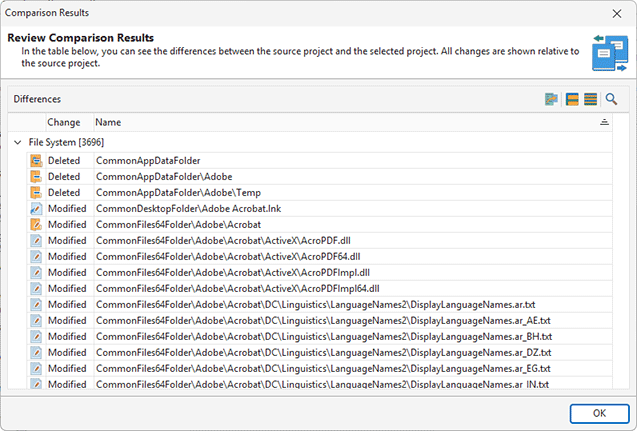
After the program finishes comparing the selected projects’ contents, including the file system, registry, and other resources, the detected changes are displayed in the Comparison Results dialog, where you can see which resources were added, removed, or modified Pic 1. The results are displayed in a table that supports sorting, searching, and filtering.
If you need to save or share the comparison results, you can export them to a file. Click Export on the toolbar of the Comparison Results dialog to open the Export Data Wizard Pic 2.
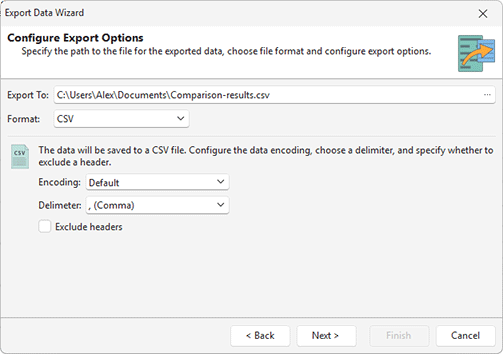
In the Export Data Wizard, select the required export format. The program supports CSV, XLSX, and HTML formats. Each format provides its own export options. After configuring the settings, proceed to export the data to a file.